Flow Virtual Networking – Building VPC’s with Transit
After I build my Nutanix lab environment (New Tech: Nutanix CE and New Tech: Deploy Nutanix Prism Central) and creating two VPC’s (one without and one with NAT Flow Virtual Networking – Basic VPC and Adding a VPC with NAT on Flow Virtual Networking), the next step I wanted to take was create a network where I am leveraging a Transit VPC to connect several VPC’s:
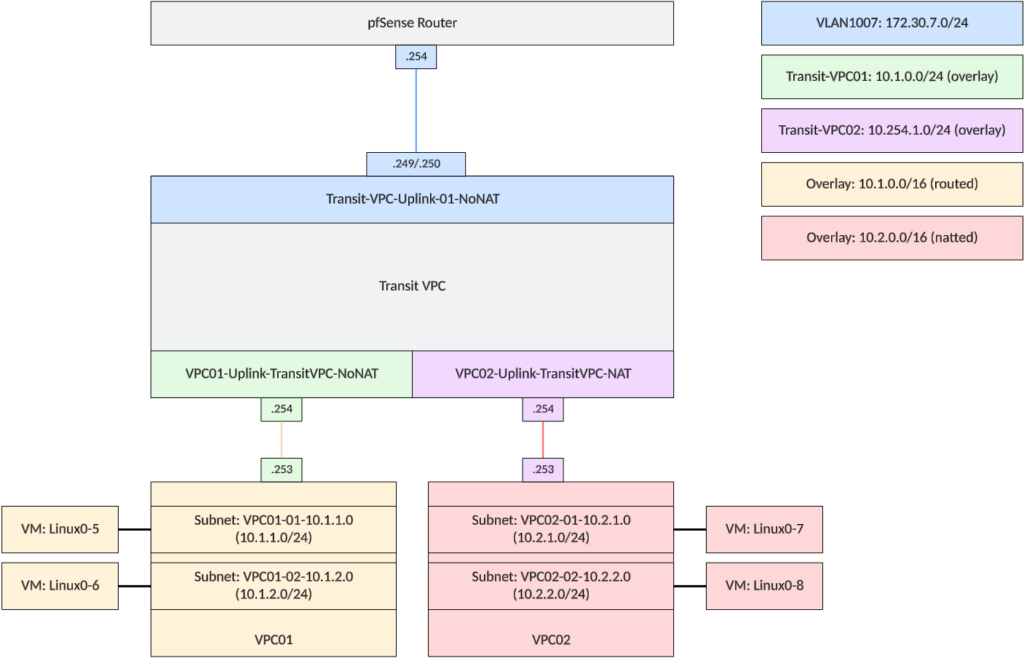
So the NAT’ing will take place on the internal side, between the VPC02 and the Transit-VPC. Traffic that needs to flow outside from VPC02 to the outside world, will then go over the No-NAT external connection.
We have setup the pfSense with the interface to connect to, and we have setup static routes, so the pfSense will know how to connect to the 10.x networks we are creating. So we have static routes for both 10.1.0.0/16 and 10.254.0.0/16 on the pfSense, sending traffic to the 172.30.7.249 interface. The pfSense static routes does not support ECMP or fail-over networking, so there is only óne interface defined.
Next up, building the Nutanix part of this network.
First step of this, is to build the “External-Uplink-TransitVPC (No NAT)” subnet. For this, we go into Prism Central, to:

Important to note that the check-mark is set to Yes, for the “External Connectivity for VPCs. Also note that the IP-address for the gateway is already configured on the pfSense and exists in the same VLAN (1007) as this new Subnet.
The subnet is created with the NAT box disabled.
After this has been created, we can create the Transit VPC, which will be used to connect the other VPC’s to. In the same menu as we created the Subnet (one below), we create a VPC:

With the following External Subnet:
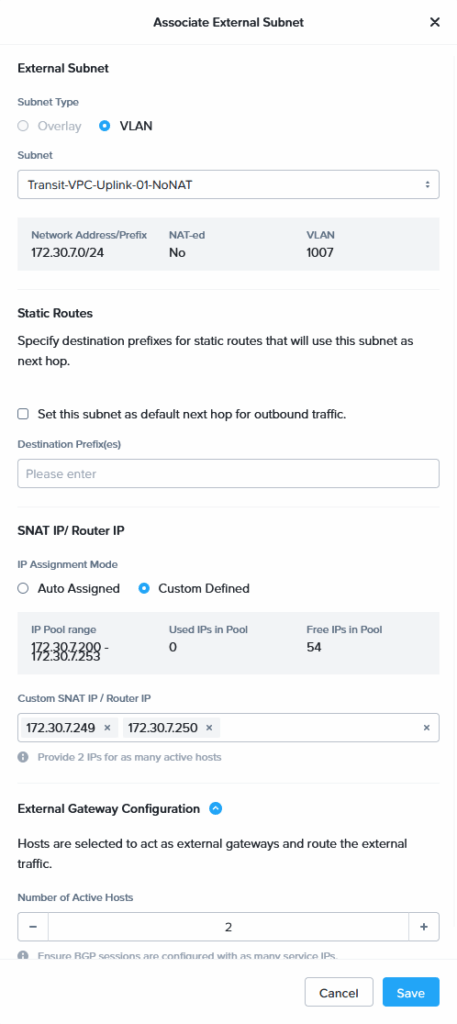
Note that the externally routable IP Prefixes is set to 10.1.0.0/16. This subnet will be handed out within VPC01, which will be routable. For the NAT part of the network, I am using /24 networks in the 10.254.0.0/16 network.
After this VPC has been created, we are going to create two Overlay based Subnets, to connect to our User VPC’s (VPC01 and VPC02).
These look like this:
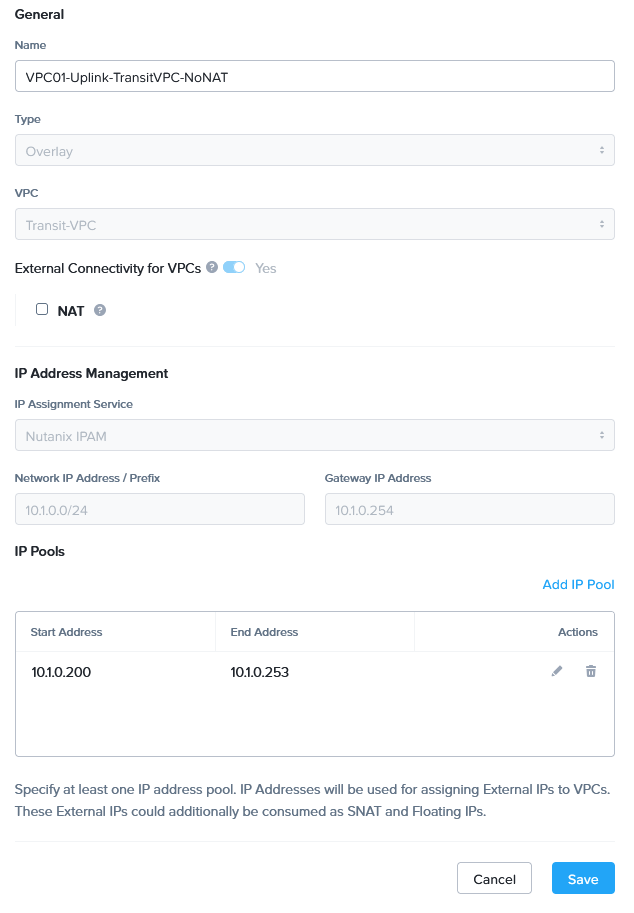
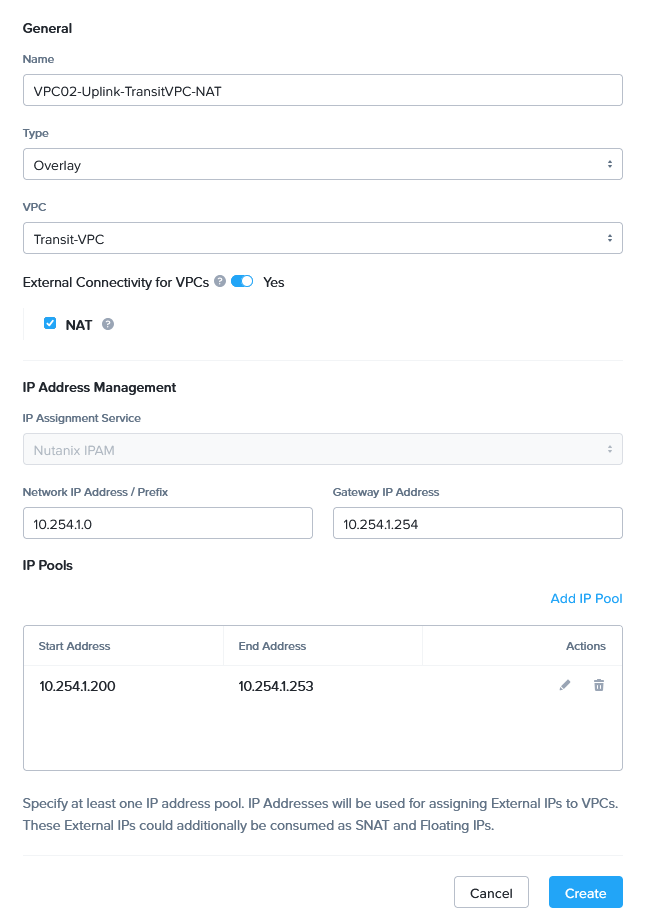
The first one (for VPC01) is No NAT, the second one (for VPC02) uses NAT.
Next up, we create the first of the VPC’s:

With the associated subnet, configured as such:
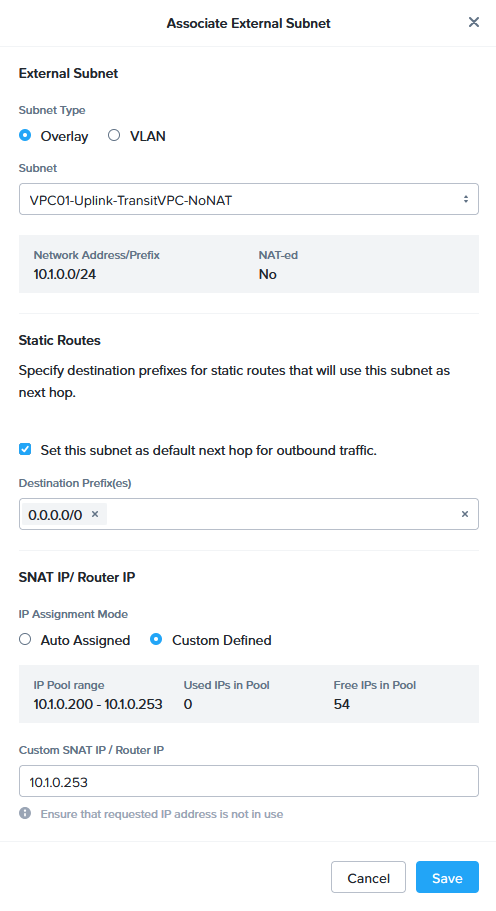
And the second VPC:
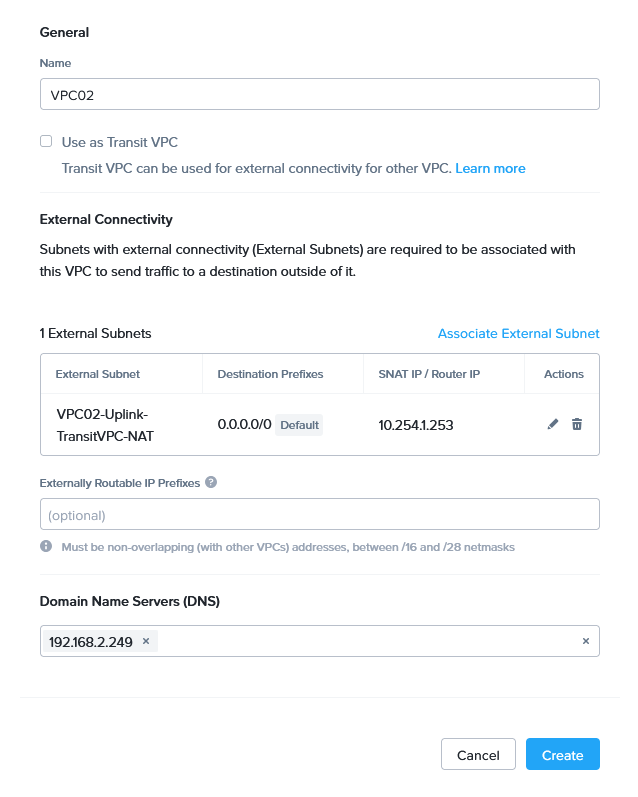
With the associated subnet, configured as such:
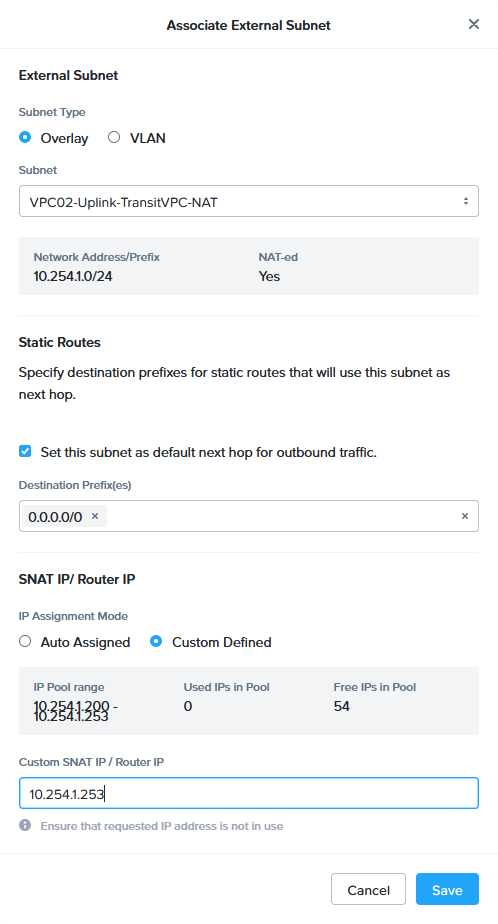
Note that the second VPC does not have an “Externally Routable IP Prefix” configured, because it will use NAT to connect to the outside world. And if I want to connect from the outside world to the inside, I will use a floating IP Address, that is in the 10.254.1.0/24 network, which is routable to and from the outside world.
And then we can create two subnets that are part of the VPC01 and two for VPC02, all configured similarly to:
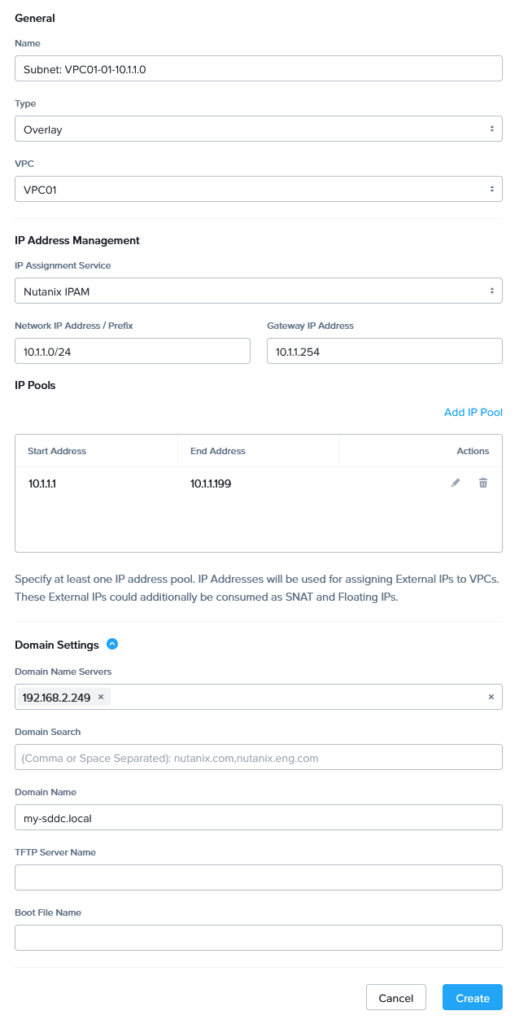
leading to:
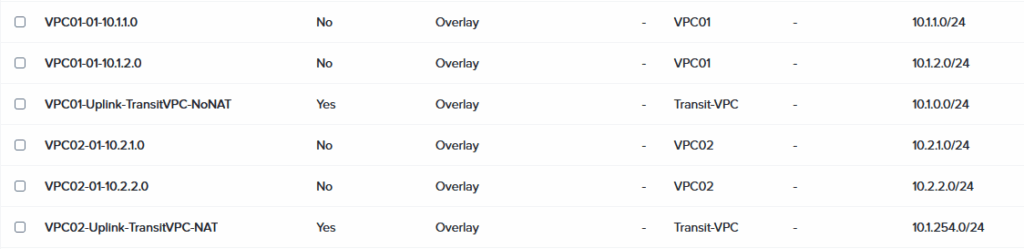
And then finally, we can attach VMs to the subnets and see if they can communicate:
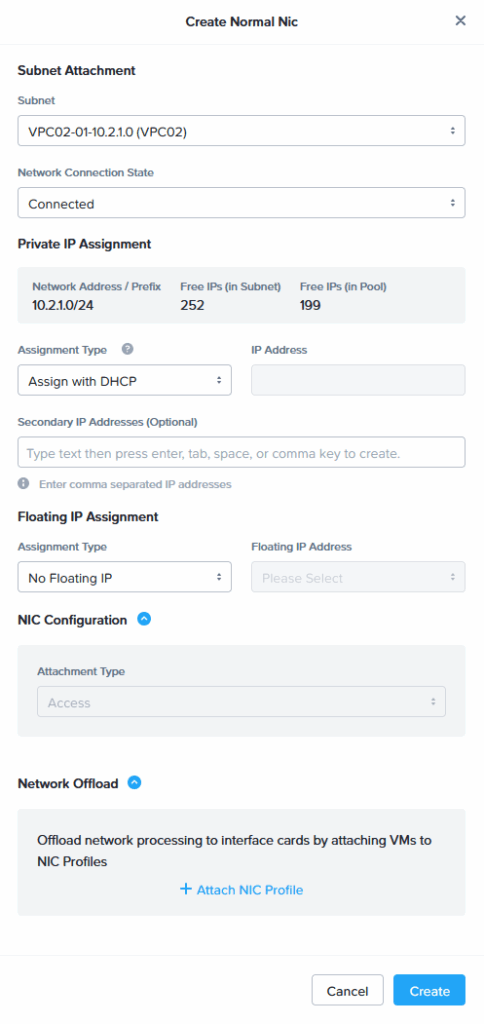
We can already see the IP-Address that are assigned to the VMs, from within Prism Central. Even before it is powered on:

Not sure if I like that, it means that powered off VM’s have a reserved IP Address, which leaves less for the powered on VM’s. But have to think about the logics behind this.
Anyway, after they have been powered on, I can see that communication flows between the VM’s within the same VPC:
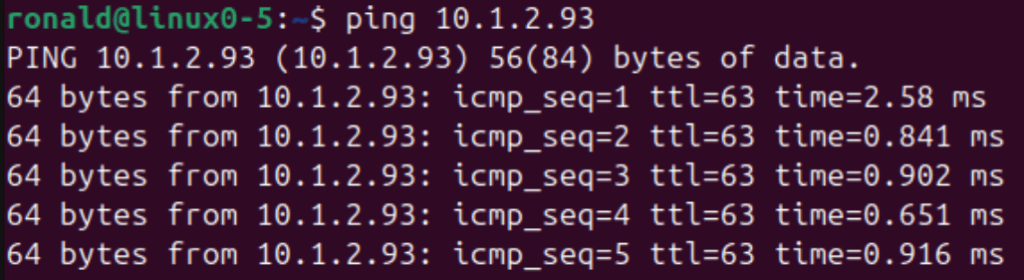
(this is 5 pinging 6) and the same in VPC02:
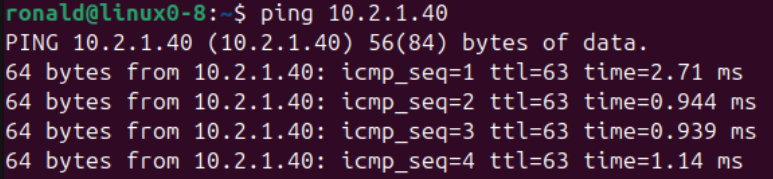
(8 pinging 7)
The VM (8) in the NAT’ed part of the network can also ping the outside world (proving that also NAT, DNS and routing works):

Ánd it can ping a VM in the VPC01, because that is routed traffic, but the other way around does not work, because that is natted.

(From 8 to 5)

(From 5 to 8)
We can make this connection work with a floating IP Address. For this we request one Floating IP Address, which we assign to VM linux0-8:
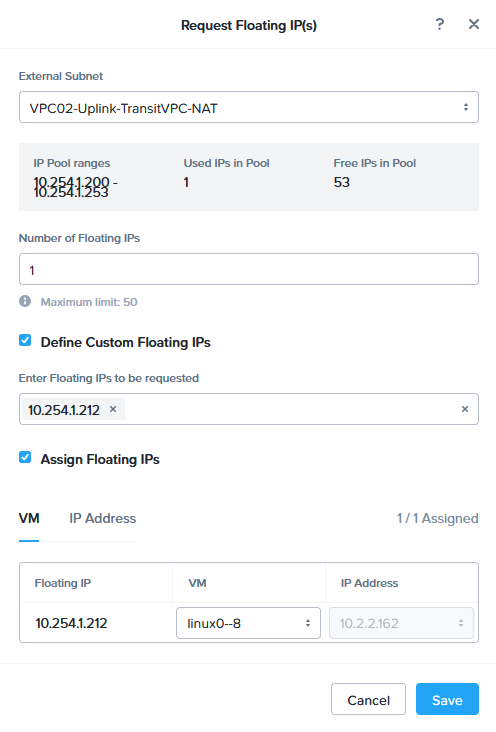
And the assigned IP Address (you can manually choose one or have it coming out of the pool that was defined on the created subnet), will be reachable from VM 5:


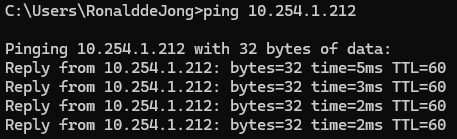
Also reachable from my laptop: